
“That critical moment… and the screen starts spinning.”
We’ve all been there. Watching your favorite team or idol, and suddenly—the dreaded buffering. Your first instinct might be to blame the server or the carrier, but hold on! In most cases, that “spinning” can be fixed with a few simple tricks right at your fingertips.
For those of you living your best life on Rakuten Mobile, here are the “secret techniques” to ensure your streaming never misses a beat.

🚀Why Rakuten Mobile is the Ultimate “Oshikatsu” (Fandom) Partner
First, let’s acknowledge the elephant in the room: Rakuten Mobile’s biggest weapon is its “Unlimited Data” plan.
Whether it’s Pacific League LIVE, sports, music, or stage performances, live streaming is a “data-hungry” monster that can devour dozens of gigabytes in just a few hours. With other carriers, you might find yourself hitting a speed limit just as the climax begins.
The peace of mind that comes with knowing you can watch your idol for as long as they are live? That is the true power of Rakuten Mobile.
📶 Why does the video stop even with “Full Bars”?
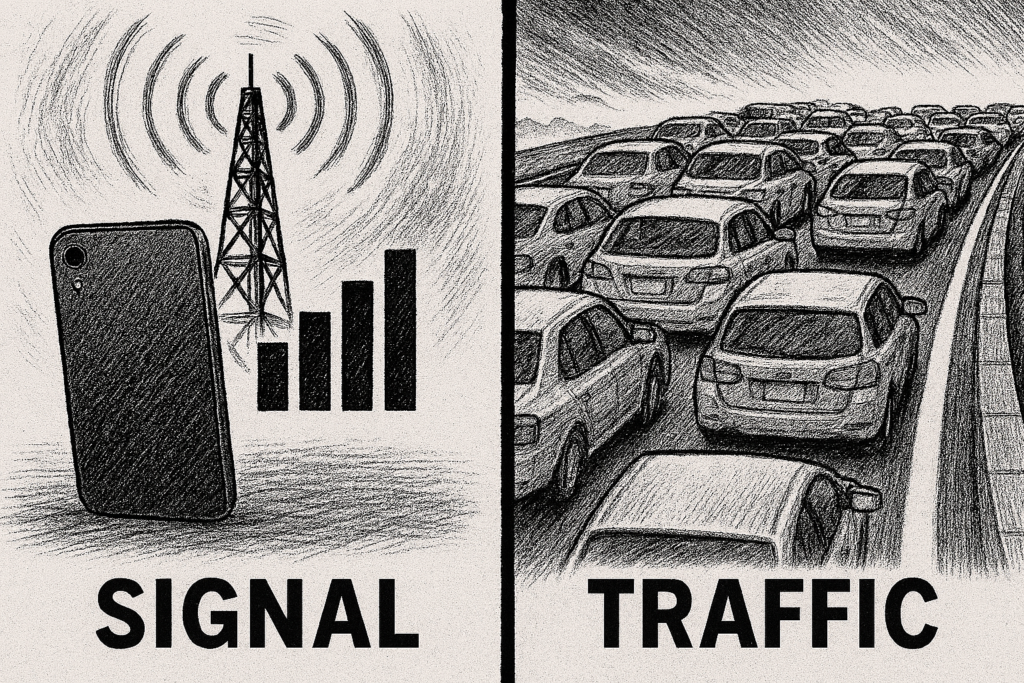
“My signal is perfect, so why is it buffering?” This is the most common wall every fan hits. The key is to understand that “Signal Strength” and “Network Speed” are two completely different things.
- Signal Bars: Represent the distance between you and the nearest cell tower (the “entryway”).
- Network Speed: Represents how many other users are currently on that same “road.”
Think of full signal bars as simply being at the entrance of a highway. If the road ahead is jammed with other users, your “data car” isn’t going anywhere. When your signal is strong but the video stops, it’s almost certainly a traffic jam.
📈 Pro-Tip: How to Check Your “Road Conditions”
To know if the road is jammed, you need to measure your speed. Every pro fan should have these tools ready:
- Fast.com (Recommended): Provided by Netflix, this is the quickest way to test your real-world video streaming speed.
- Speedtest.net: The industry standard for checking overall stability.
If the numbers are low, don’t panic. Just acknowledge the “traffic jam” and use the following “3 Secrets” to adapt.
💡 The 3 Secrets to Smooth Streaming
Forget complex settings. Here are the “magic commands” to change your viewing experience starting today.
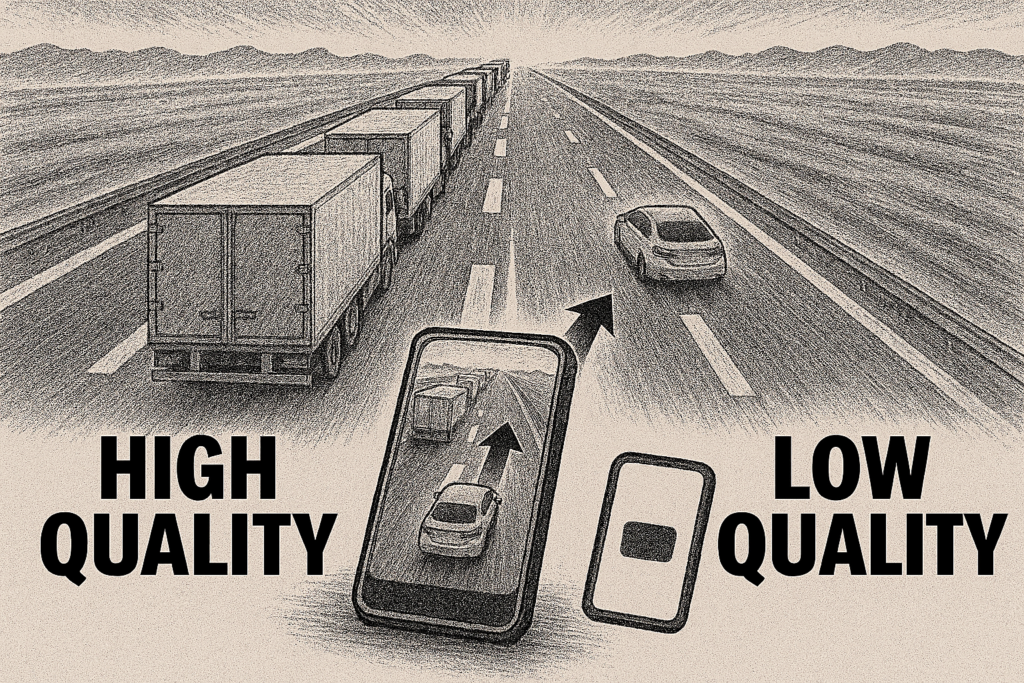
Secret 1: Have the “Courage” to Lower Quality (Change Lanes)
If the road is jammed, stop trying to drive a giant truck (High Quality) through it. Lowering your resolution is like switching to an empty lane.
- YouTube: Use the “Data Saver” mode in settings.
- Rakuten TV (Pacific League Special): Try fixing your quality settings to “1Mbps or less.” On a smartphone screen, you’ll barely notice the difference in clarity.
Pro Advice: You don’t have to keep it this way forever. When you’re back on your stable home Wi-Fi, feel free to switch back to “Auto” and enjoy the highest quality.
Secret 2: The Magic of a “Hard Reset”
Sometimes, your “data entryway” just needs a breather. Restart your smartphone or tablet. Close all other background apps. If you’re using a home Wi-Fi router, give that a reboot too. It’s the ultimate way to clear out the digital clutter.

Secret 3: Airplane Mode (The Instant Cure)
Toggle “Airplane Mode” ON, wait a few seconds, and turn it back OFF. This forces your phone to re-scan and connect to the best available cell tower in your current location. It’s the quickest way to “reset” your invisible connection path.

🛠 Official Help Desk
When in doubt, check the official sources for specific settings:
🏁 Conclusion: Adapt and Conquer
Don’t wait for the perfect network environment—adapt to the one you have. Check your speed, adjust your quality, and don’t be afraid to reboot. Master these steps, and no matter how crowded the venue, your streaming experience will stay smooth and uninterrupted.

Related Articles

Comprehensive Guide on Rakuten Mobile’s Contract Period and Cancellation Fees

How to Cancel Your Rakuten Membership: A Simple Step-by-Step Guide

Rakuten Mobile eSIM Guide | Comprehensive Explanation of Setup, Benefits, and Compatible Devices

Easy for Everyone! How to Cancel Rakuten Mobile

How to Switch from Physical SIM to eSIM for Free